From the timetable screen click the action menu button in the top right corner to reveal the Action Menu and click Book PT.

Screenshot - Timetable screen with action menu
Set your default PT trainer
If you have not already set a default PT trainer you will be presented with the opportunity to Choose a PT trainer.
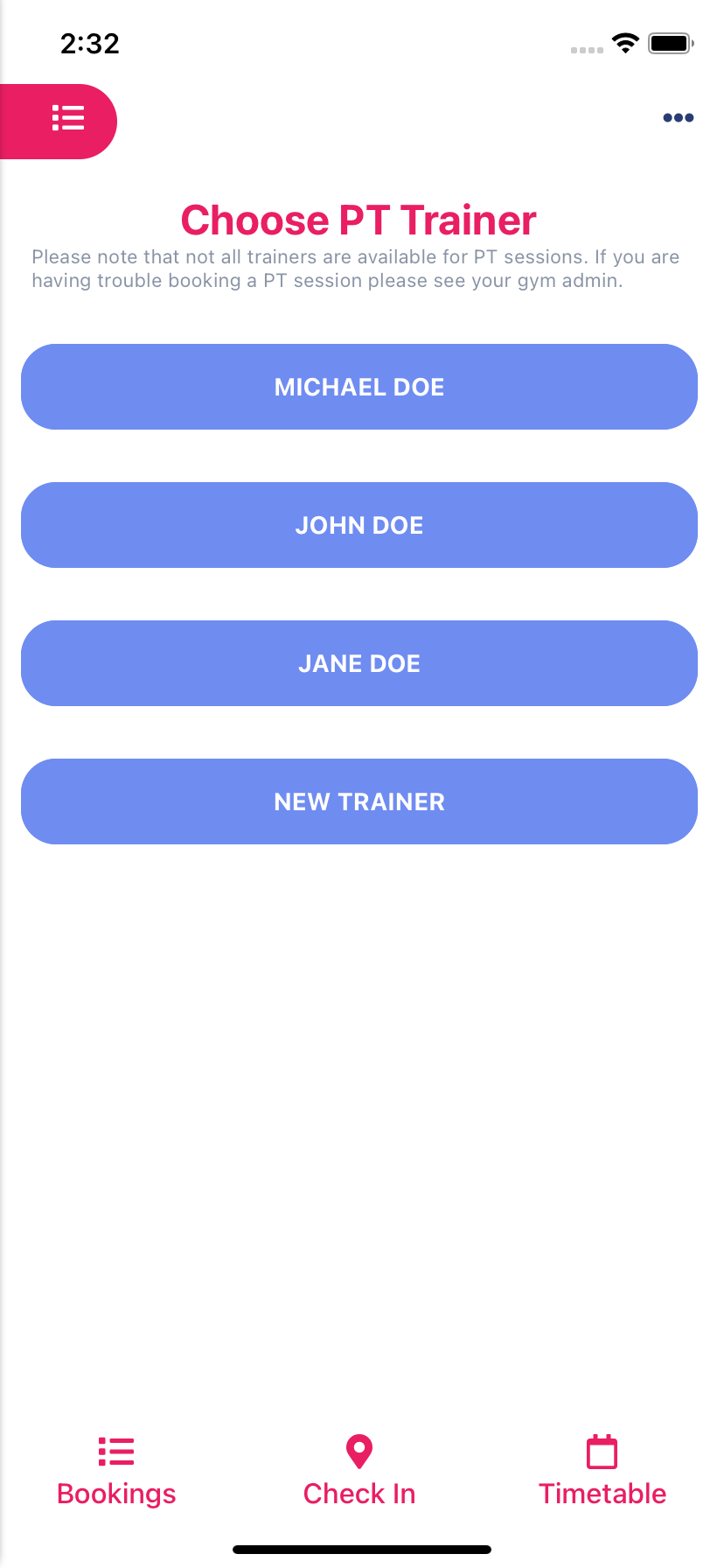
Screenshot - Book PT - Choose PT Trainer screen
Select a PT length
If you have any PT credit you will see it listed at the top of the Book PT screen. Click the chosen credit length to continue booking. (If you do not currently have any credits click the "Buy Other PT Credit" button to begin the PT credit purchase process).

Screenshot - Book PT screen - Select a PT length
Select a date
Select a date in the next 2 weeks for your PT booking. Note: Not all trainers are available every day of the week so there will be some days that will not appear in the date list
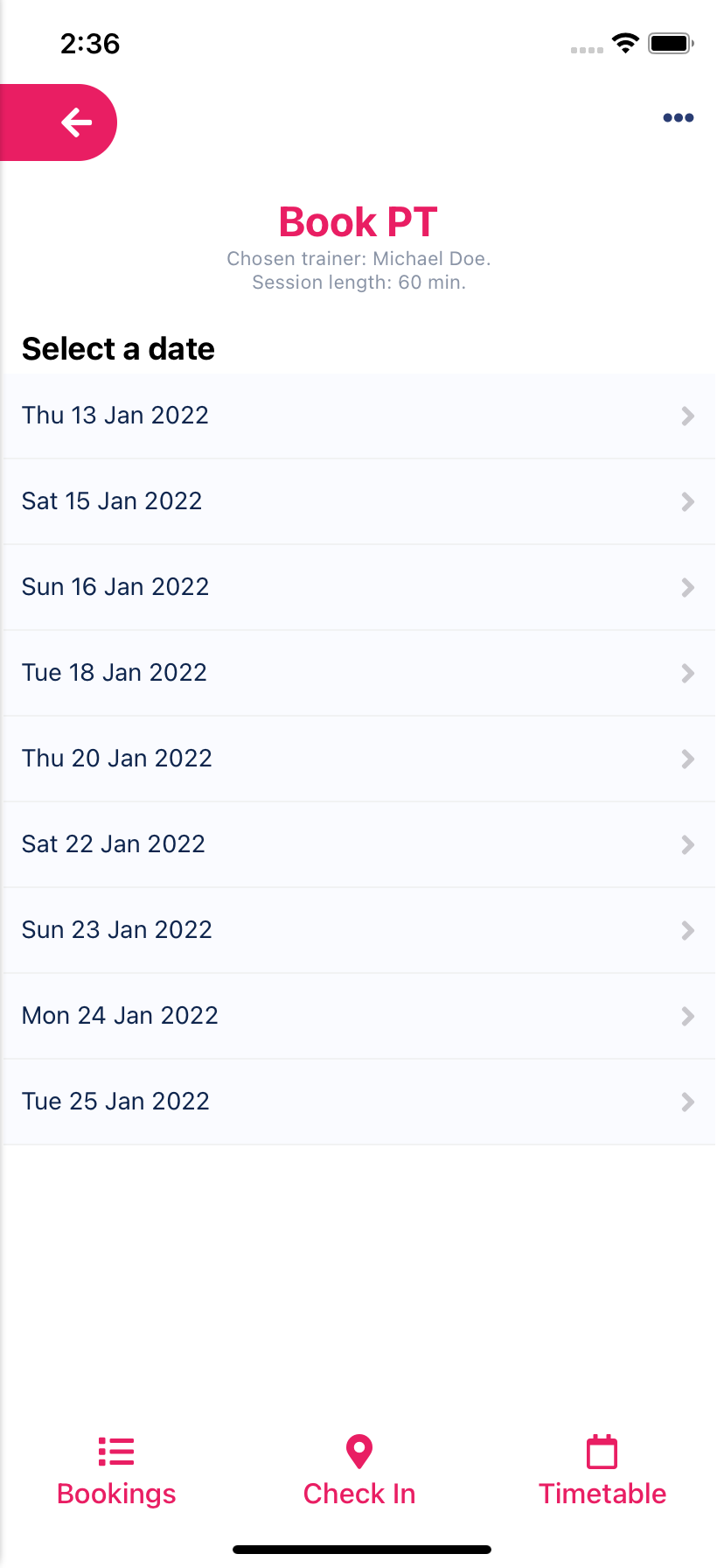
Screenshot - Book PT screen - Select a date
Select a start time
Select a start time for your PT booking. Note: Not all trainers are available at all times of the day.
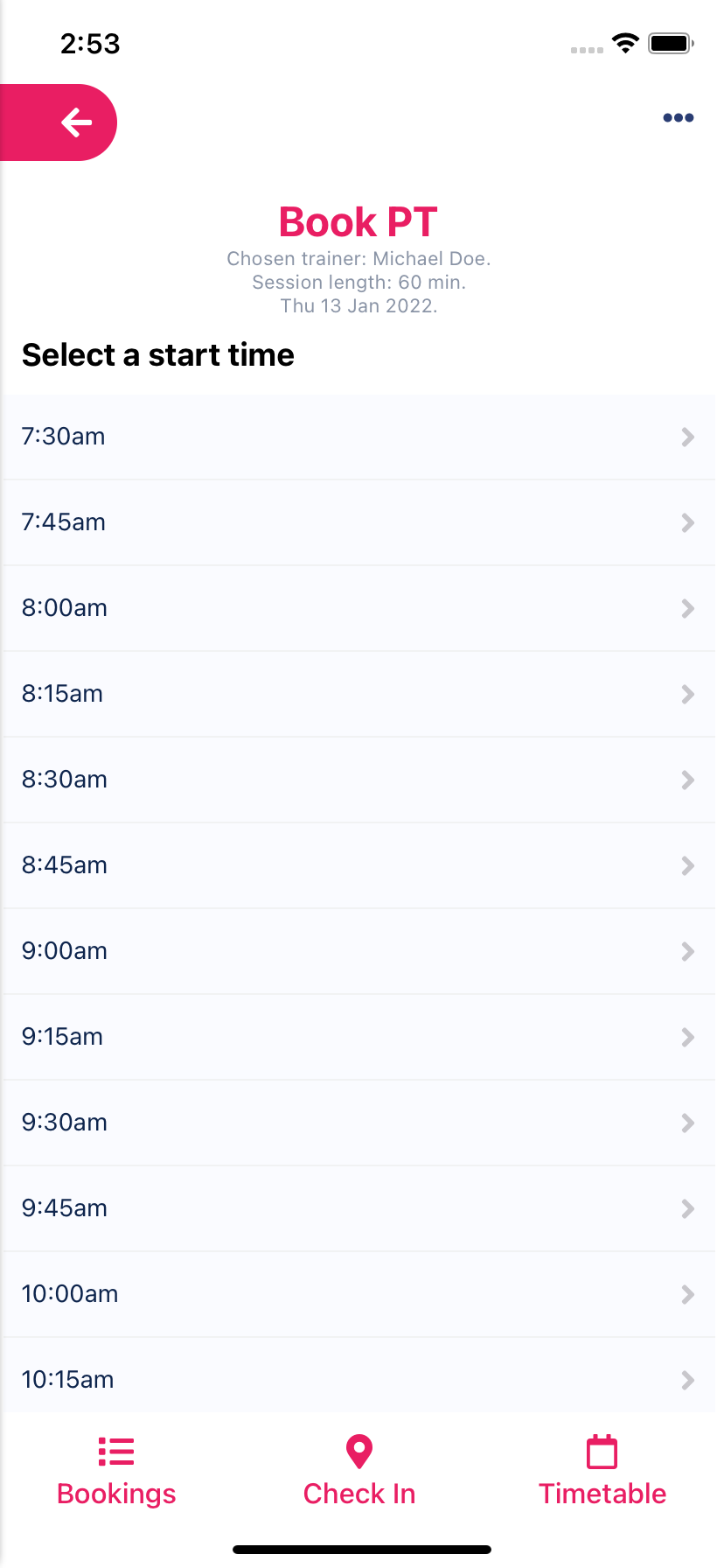
Screenshot - Book PT screen - Select a start time
Confirm PT Booking
Once you have chosen all the options for your PT booking you will be asked to confirm the details by clicking the "Confirm and Book PT" button.

Screenshot - Book PT screen - Confirm PT Booking